
Oracle AutoUpgrade can do a lot more than its name suggests. Upgrades, patching, preparing Oracle homes, downloading software, cloning PDBs… Great. Now you need the right configuration, the right command and a clear idea of what happens next.
That last part is where a pile of browser tabs usually enters the picture.
Meet ALIS — AutoUpgrade Looks Insanely Simple: our browser-based workbench for turning an AutoUpgrade plan into a configuration file and an ordered runbook. Pick what you want to achieve, describe your environment and inspect the output as you go.
Open ALIS and try it ↗ — no account or installation required.
Start with the outcome
“I need a fresh Oracle Home on an empty server” is a useful starting point. Remembering which combination of parameters describes that operation should not be the most interesting part of your day.
ALIS currently provides 12 workflows, each with an editable example. They cover software preparation and downloads, creating or consuming a Gold Image, database and selected-PDB upgrades, non-CDB conversion, unplug/plug, cloning with optional refresh, and patching existing databases.
Choose the workflow and the form brings the relevant settings into focus. A live preview shows the actual .cfg, while the searchable Field guide helps you find parameters and understand their scope. The reviewed profile contains 132 distinct parameter names across upgrade and patch operations.
You still see the file you will use. You can read it, change it, save it and put it through your normal review process.
A fresh Oracle Home, without an imaginary database
Let’s use a concrete example. Open ALIS, select Install a fresh Oracle Home and click Load example for this workflow. The example fills in a target home, software location, edition, Oracle base and inventory directory.
There is no sid or source_home here. On a new server there may be no database and no existing home to point at. The workflow should reflect that.
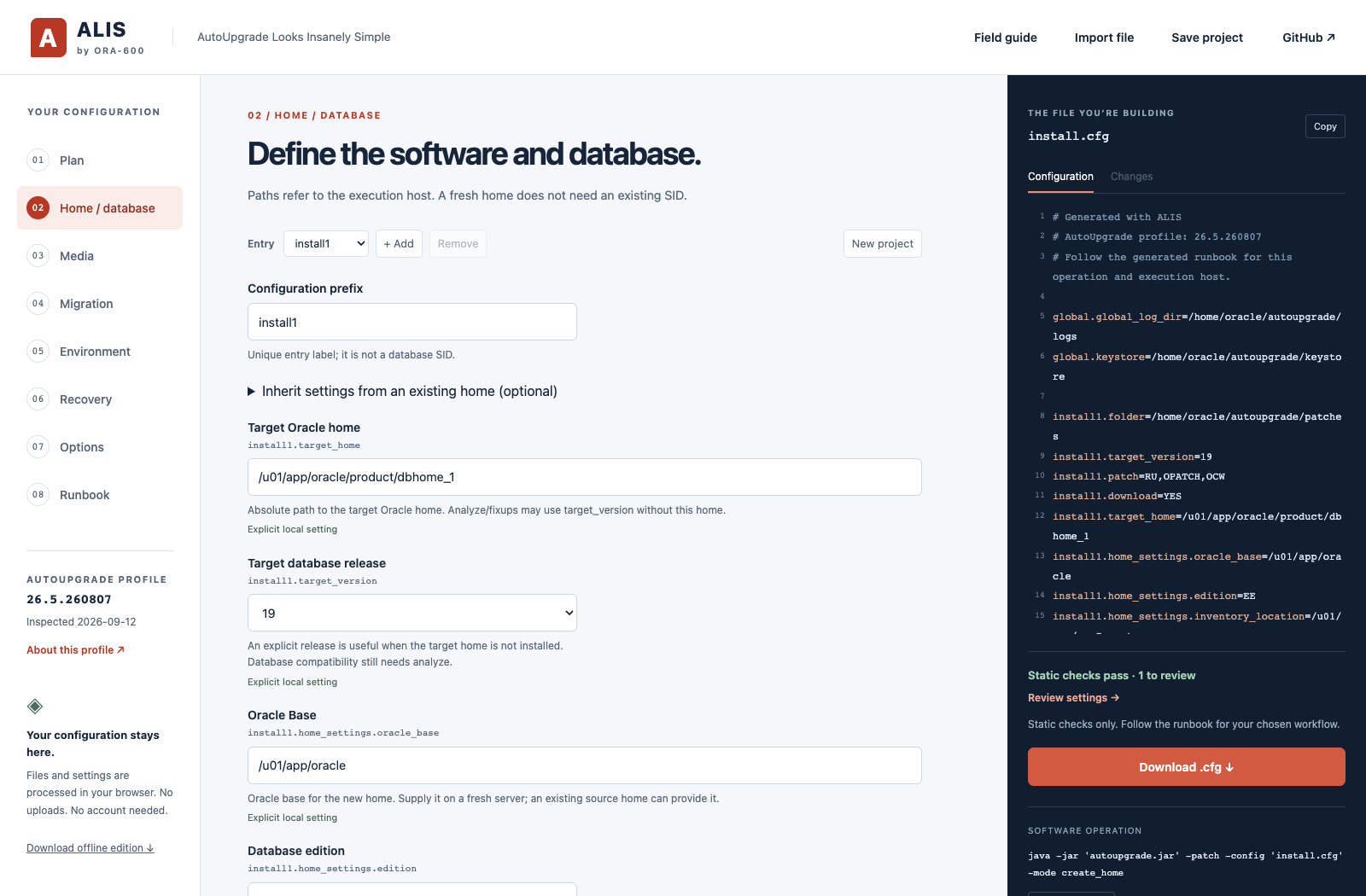
This is the configuration generated by the example using profile 26.5.260807. Paths and the EE edition are example values: choose the locations and edition appropriate to your installation.
# Generated with ALIS
# AutoUpgrade profile: 26.5.260807
# Follow the generated runbook for this operation and execution host.

global.global_log_dir=/home/oracle/autoupgrade/logs
global.keystore=/home/oracle/autoupgrade/keystore

install1.folder=/home/oracle/autoupgrade/patches
install1.target_version=19
install1.patch=RU,OPATCH,OCW
install1.download=YES
install1.target_home=/u01/app/oracle/product/dbhome_1
install1.home_settings.oracle_base=/u01/app/oracle
install1.home_settings.edition=EE
install1.home_settings.inventory_location=/u01/app/oraInventory
Download the example configuration · Download its complete Markdown runbook
The patch expression above is deliberately the application’s example. Bare RU resolves when AutoUpgrade downloads the media; it is not a pinned patch version. Review the resolved software and preserve its download inventory when you need a repeatable installation.
The file is only half the job
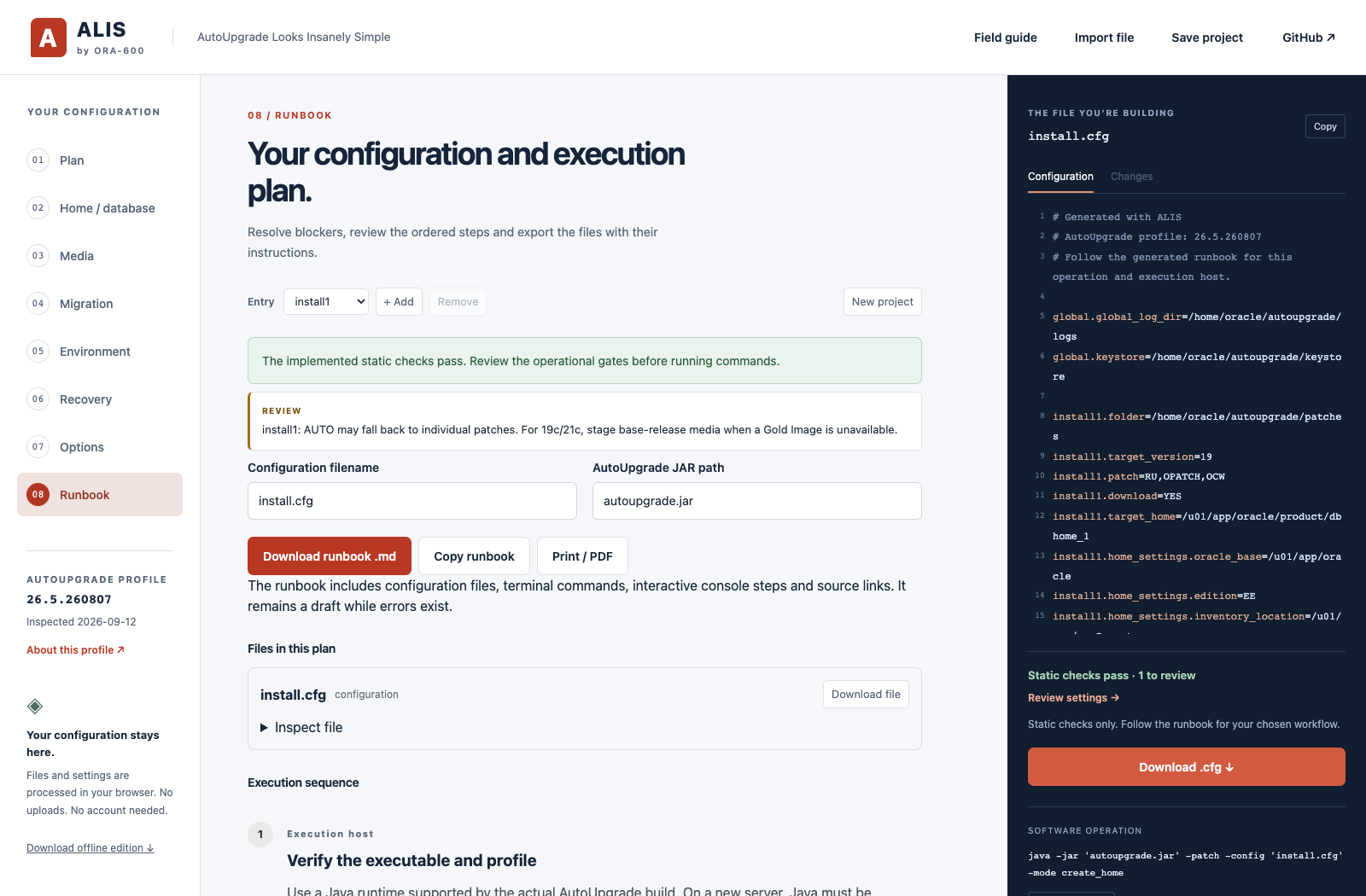
Open Runbook. ALIS lays out the sequence: verify Java and the AutoUpgrade build, prepare working directories, place the configuration, load MOS credentials, download and inspect the software, create the home, then complete any requested privileged installation steps.
The main AutoUpgrade commands for this example are shown below. They are separate stages with checks and an interactive password-loader session between them; use the complete runbook rather than treating the listing as an unattended script.
# Open the interactive MOS credential loader on your server.
java -jar 'autoupgrade.jar' -patch -config 'install.cfg' -load_password

# After completing the loader dialogue, download and inspect the media.
java -jar 'autoupgrade.jar' -patch -config 'install.cfg' -mode download

# After checking the installation source and server prerequisites,
# create the Oracle Home on the target host.
java -jar 'autoupgrade.jar' -patch -config 'install.cfg' -mode create_home
The MOS password is entered at AutoUpgrade’s prompt on your server. ALIS does not ask for it. Run root scripts only when AutoUpgrade requests them, using the paths and node order it reports.
This workflow installs software. Creating a database is a separate task. The generated example also calls out the possibility of falling back to individual patches: for 19c/21c, you may need base-release media when an Oracle Gold Image is unavailable.
Bring your existing configuration
You do not have to start over. Import a .cfg and ALIS preserves comments, ordering and unknown settings, with a line diff to help you inspect changes. Unknown options receive a warning; malformed, duplicate or explicitly unsupported settings block configuration export.
Check the selected operation and workflow after import: those choices are inferred because a configuration file does not store the whole execution plan.
When the plan looks right, save the configuration, export the Markdown runbook or use the print/PDF layout. Use Save project for an editable ALIS JSON file that also retains planning context and execution preferences. Closing the page without saving loses the draft.
Local by design
Configuration processing happens in the browser. ALIS has no backend to receive your configuration, no account to create and no analytics in the application. The hosted page is still fetched from GitHub Pages, so ordinary page requests reach the hosting provider.
For an environment where you want a local file, download the standalone offline edition. The workbench, examples and parameter reference are available there too.
What the green status means
ALIS checks the configuration against its implemented rules. It does not connect to your database, run AutoUpgrade or prove that an upgrade will succeed. MOS access, available media, patch conflicts and the actual state of RAC, Data Guard or TDE still need their real environment checks.
The profile used in this example was built from inspection of AutoUpgrade 26.5.260807, including its parameter declarations, selected validators and execution paths. The project’s validation record documents automated tests and generated-file comparisons against the supplied JAR parser. Those checks are not a claim of a completed Oracle deployment.
That is the useful division of work: ALIS helps you prepare and review the plan; AutoUpgrade and your operational checks establish what works on the actual system.
Give it a spin
Open the application, load an example close to your next maintenance task and inspect both the configuration and the runbook. Or import a file you already understand and see how the plan compares with your existing procedure.
Less time stitching together configuration fragments. More time understanding the operation you are about to run.
Launch ALIS ↗ · Source code and documentation · Workflow guide
ALIS is an independent ORA-600 project, with its original code and documentation available under the MIT license.